
You have printed 500 flyers and the website changes address, or the menu is a new PDF? With a dynamic QR code you reprint nothing: you change the destination and the same QR code leads to the new page. It works because the QR code points to a 1li.ch short link, and you can edit the short link whenever you like.
How to create a dynamic QR code
- Open QR codes and create a new code of type URL.
- Enter the destination address.
- Turn on Dynamic QR code: the QR code is linked to a short link. You can also choose a short link you already have.
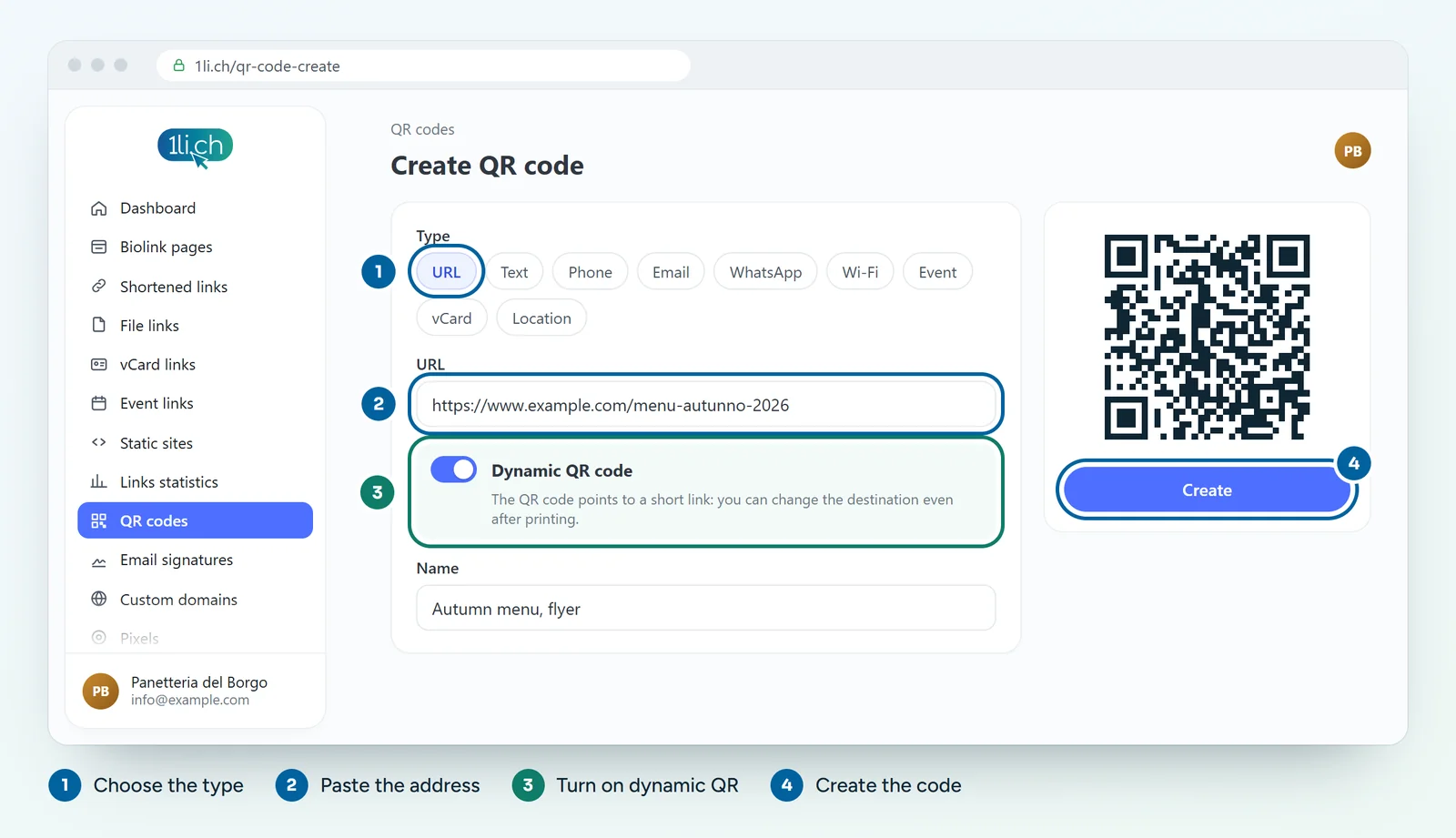
- Customise the style and click Create.
- Download the QR code, test it and print it.
How to change the destination after printing
- Open the Links list in the dashboard and find the short link linked to the QR code.
- Open it for editing.
- Change the Long URL, that is the destination.
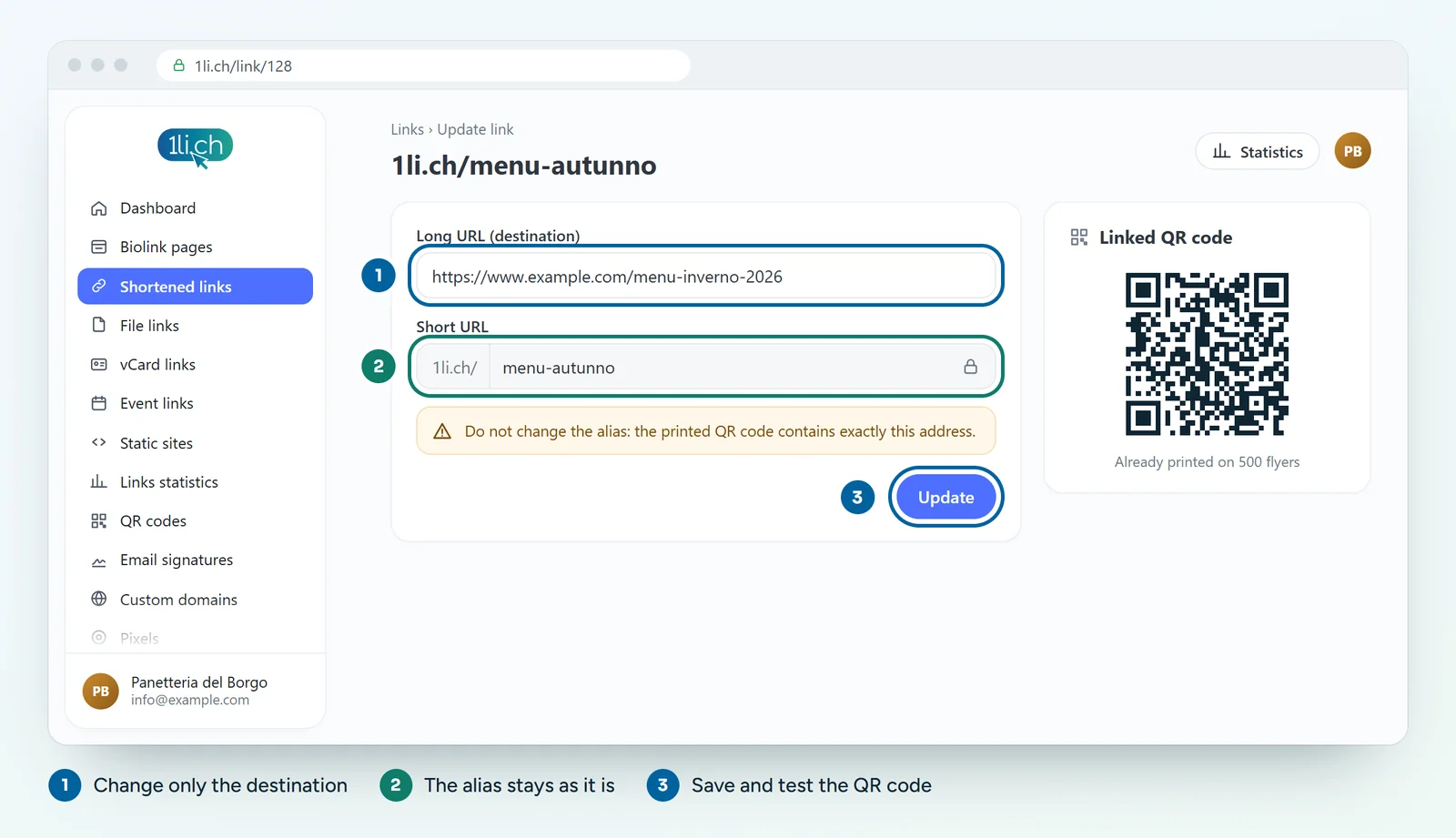
- Save and scan the printed QR code to check that it leads to the new page.
Careful: do not change the alias
The alias is the last part of the short link (for example 1li.ch/menu). The printed QR code contains exactly that address: if you change the alias, the QR code stops working. Change only the destination, never the alias.
What else you can do
- See how many times the QR code has been opened in the short link’s statistics.
- From the Personal plan: schedule the link with a start and end date, a click limit and an expiry URL.
Common mistakes
- Static QR code already printed: it contains the final address directly and cannot be changed. For your next print run, use a dynamic QR code.
- Short link deleted or deactivated: the QR code no longer leads anywhere.
In your plan
| Feature | Free | Personal | Business | Agency |
|---|---|---|---|---|
| Change the destination | yes | yes | yes | yes |
| Short links | 1 | 25 | 200 | 1’000 |
| QR codes | 1 | 5 | 50 | 250 |
A dynamic QR code uses a short link. See plans and pricing.