
With a custom domain, your links and biolink pages show your name instead of ours: link.yourcompany.ch/offer instead of 1li.ch/offer. It is a small detail that gives people confidence to click and strengthens your brand. Connecting it takes two parts: you set a DNS record where you registered the domain, then you add the domain in your Dashboard.
1. Set the DNS record
- Sign in to the panel of the provider where you registered the domain (for example Infomaniak, Hostpoint, Swizzonic or others) and open the DNS settings.
- Decide whether to use a whole domain (
yourcompany-link.ch) or a subdomain (link.yourcompany.ch). If your main domain already hosts your website, use a subdomain. - Create one of these two records:
- an A record pointing to the IP address
83.166.128.50; - or a CNAME record pointing to
1li.ch.
- an A record pointing to the IP address
- Save the changes in the DNS panel.
2. Add the domain in the Dashboard
- Sign in to 1li.ch and open Custom domains in the Dashboard menu.
- Create a new domain and enter the domain or subdomain, without https:// and without a trailing slash.
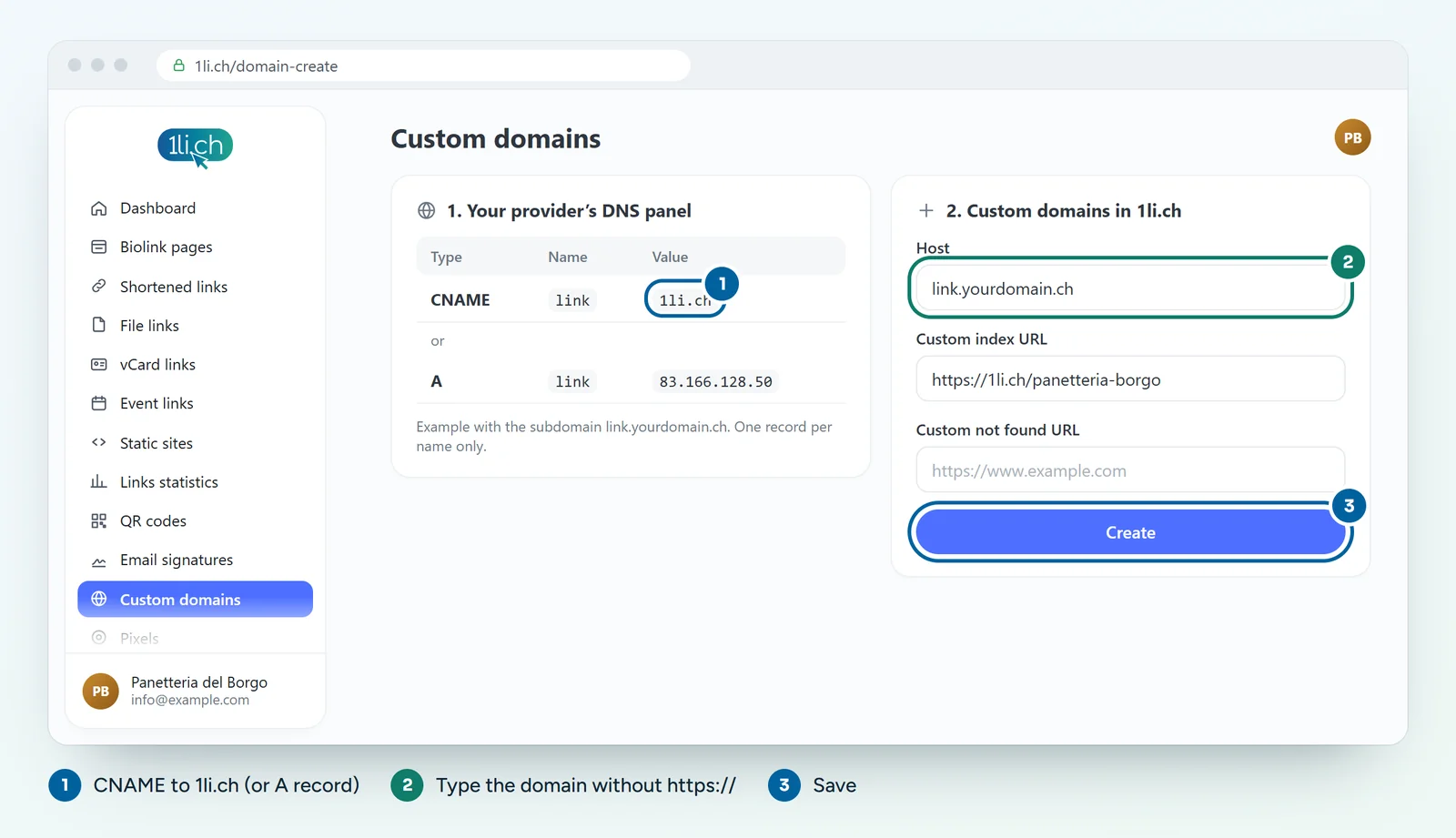
- Fill in the Custom index URL: this is the page we send people to when they open the domain without any path (for example your website or your biolink page).
- Fill in the 404 page URL: this is where we send people who type a link that does not exist.
- Save. Before the domain can be used, we check it and activate it ourselves.
A record or CNAME?
- For a subdomain (
link.yourcompany.ch), a CNAME to1li.chis the simplest choice. - For a whole domain, many providers do not allow a CNAME on the root: in that case use the A record.
- Do not create both records on the same name, and delete any old A or CNAME records on the same name.
In your plan
| Feature | Free | Personal | Business | Agency |
|---|---|---|---|---|
| Your own domain | no | no | 3 | 25 |
See plans and pricing.