
«What is the Wi-Fi password?» is the question everyone asks, in a café as much as in a holiday flat. With a Wi-Fi QR code, guests scan it and their phone connects on its own, without typing anything.
How to create it
- Open QR codes in the dashboard menu and create a new code.
- Choose Wi-Fi as the type.
- Type the network name (SSID) exactly as it appears on the phone, with capitals and spaces.
- Choose the security type (usually WPA/WPA2) and enter the password.
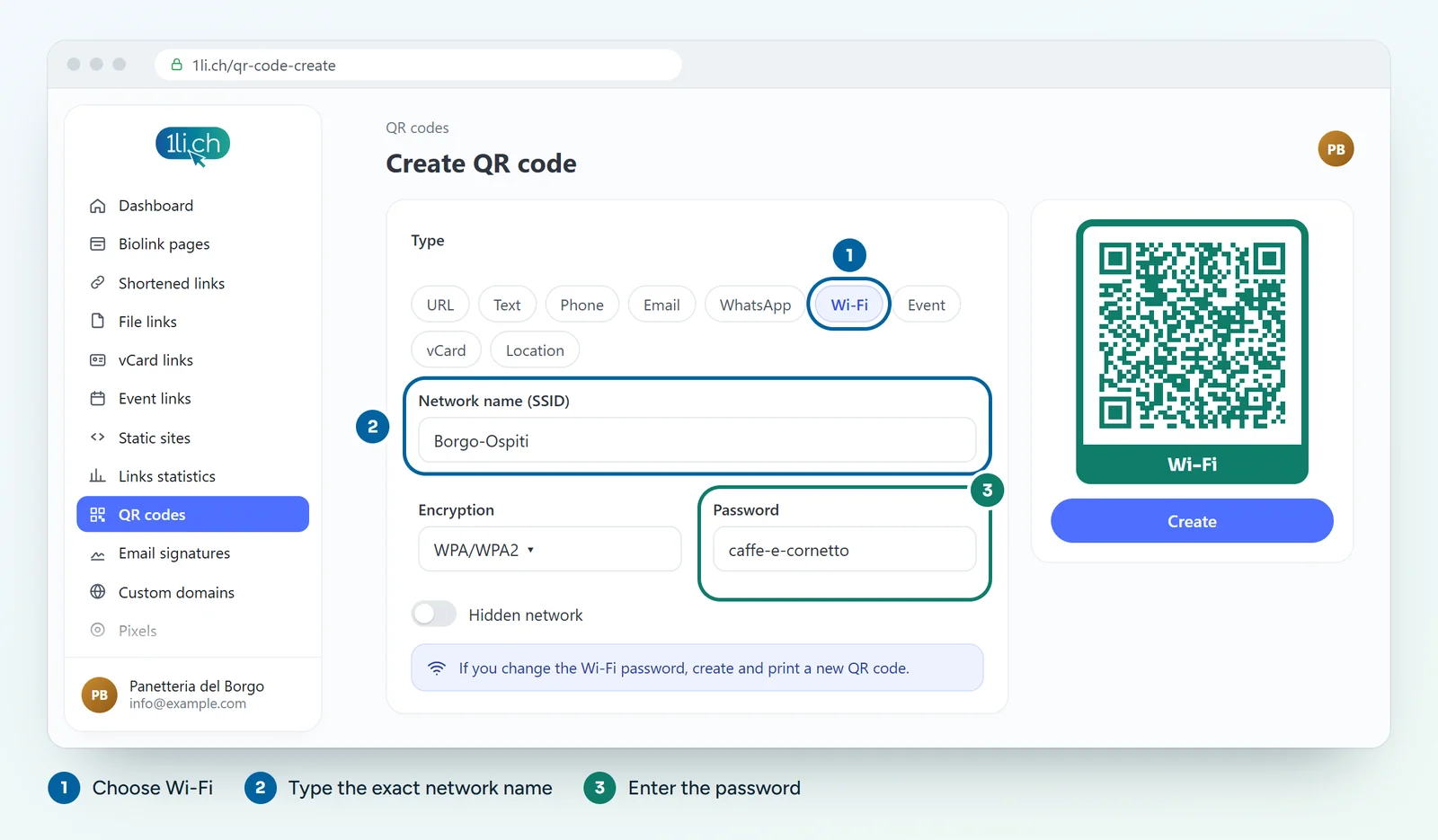
- If the network is hidden, turn on the matching option.
- Customise the colours and frame, for example with the text «Wi-Fi», and click Create.
- Download the QR code and test it with a phone that has never joined that network.
Important: it is a static QR code
The network name and password are written inside the code. If you change the Wi-Fi password, you have to create and print a new QR code. A Wi-Fi QR code does not count clicks in the statistics, because it does not go through a link.
Security
- Use a separate guest network, not the one for your office or till.
- Display the code only where it is needed: anyone who photographs it has the password.
- Change the guest password now and then, and reprint the QR code.
Where to put it
- On the counter or on the table, in a menu holder.
- In the room or holiday flat, near the door.
- In the meeting room or waiting room.
An idea: next to the Wi-Fi QR code, put the QR code of your biolink page, with menu, opening hours and reviews.
In your plan
| Feature | Free | Personal | Business | Agency |
|---|---|---|---|---|
| QR codes | 1 | 5 | 50 | 250 |
See plans and pricing.