
A QR code takes people from a flyer, a shop window or a restaurant table straight to their phone. On 1li.ch you create one in a few steps, for a website but also for a phone number, your Wi-Fi network or a business card. If you think you might change where it goes one day, choose a dynamic QR code from the start.
How to create it
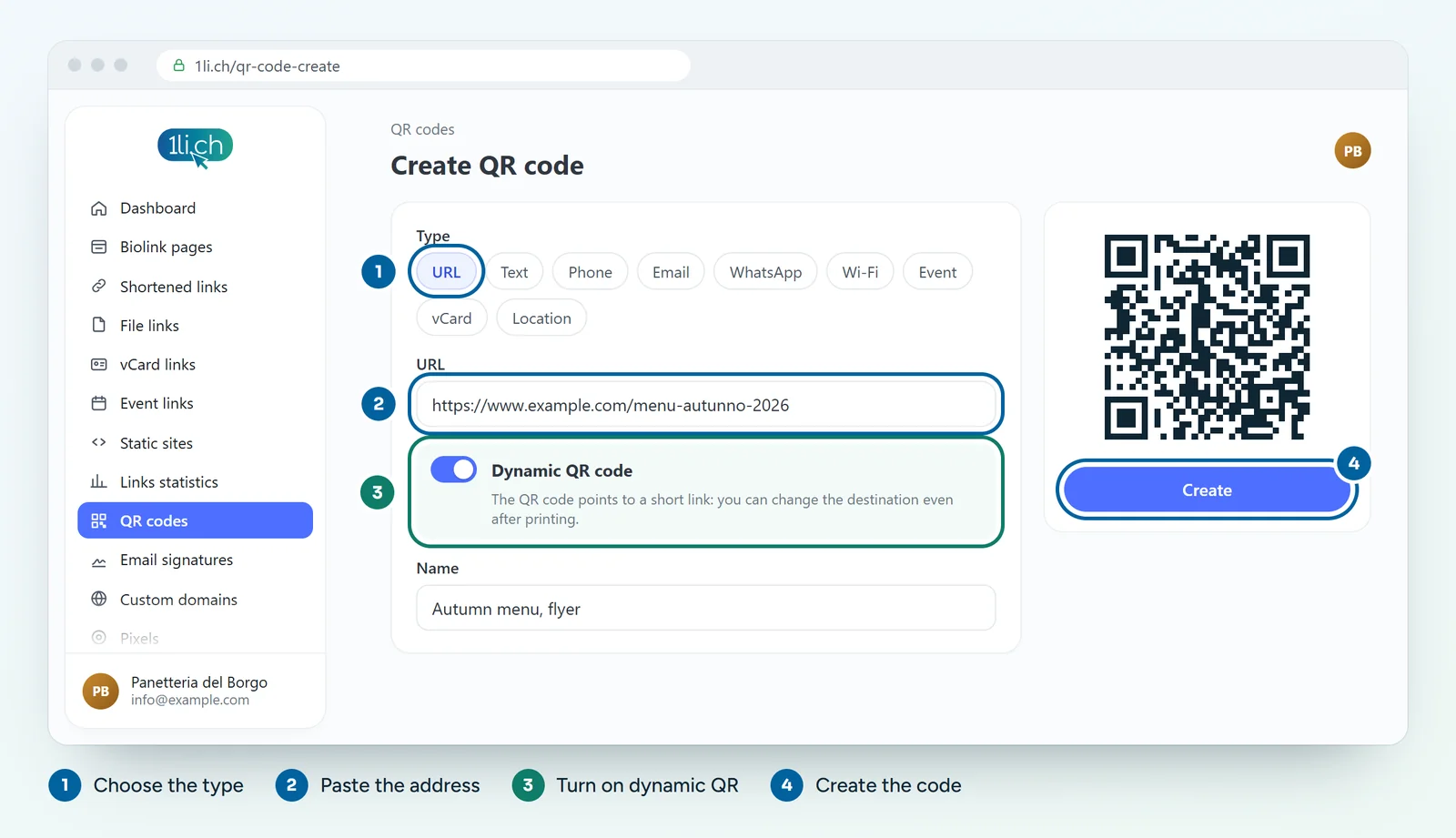
- In the dashboard menu, click QR codes and create a new QR code.
- Choose the type (for example URL).
- Fill in the fields for the chosen type, for example the website address.
- If you want to be able to change the destination after printing, turn on Dynamic QR code.
- Customise the style: colours, shapes, frame, logo.
- Click Create to save it.
- Download it as SVG, PNG, JPG or WEBP and test it with your phone before printing.
QR code types
- URL: opens a website or a biolink page.
- Text, Email, Phone, SMS, WhatsApp, FaceTime.
- Wi-Fi: guests connect to the network without typing the password.
- Location: opens a position on the map.
- Event: adds an appointment to the calendar.
- vCard: saves your contact details to the address book.
- Payments: PayPal, EPC (SEPA bank transfer), UPI, PIX and crypto.
Create many codes at once
With bulk generation you create up to 100 QR codes in a single operation, one line per code. Useful for numbering tables, rooms or products.
Tips
- For anything you print, use a dynamic QR code: if the website changes address, you do not have to reprint.
- Print the code large enough and leave a white margin around it.
- Test the QR code with several phones, also in low light.
In your plan
| Feature | Free | Personal | Business | Agency |
|---|---|---|---|---|
| QR codes | 1 | 5 | 50 | 250 |
| No ads | no | yes | yes | yes |
See plans and pricing.