
Blocks are the building bricks of your biolink page: a button, some text, an image, a video, a form. You add them one below the other in the Blocks tab and, for each one, you decide its look, position and visibility. Many settings are the same for every block, so we explain them here once.
Add a block
- Open the biolink page for editing and go to the Blocks tab.
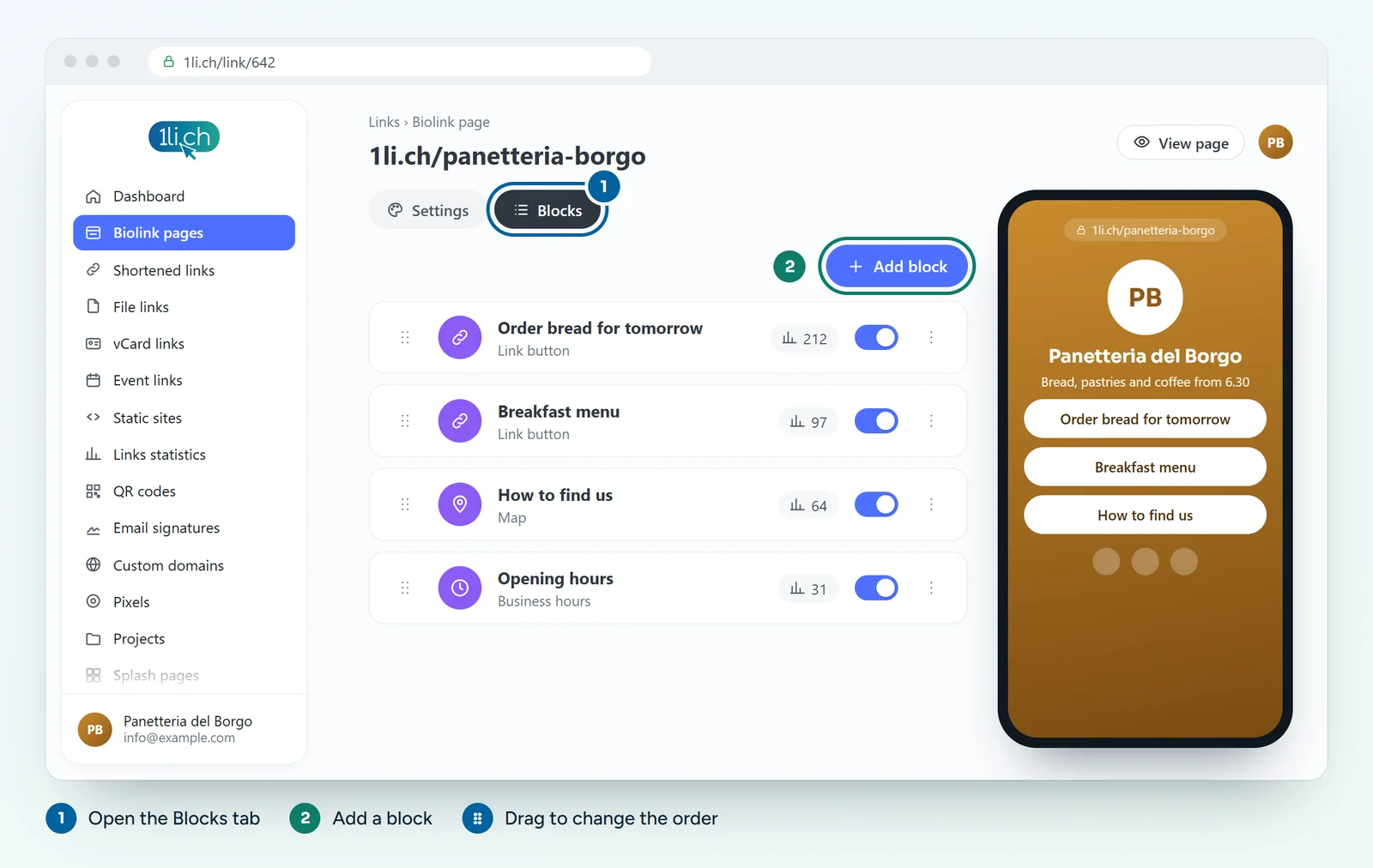
- Add a new block and choose the type, for example Link button or Paragraph.
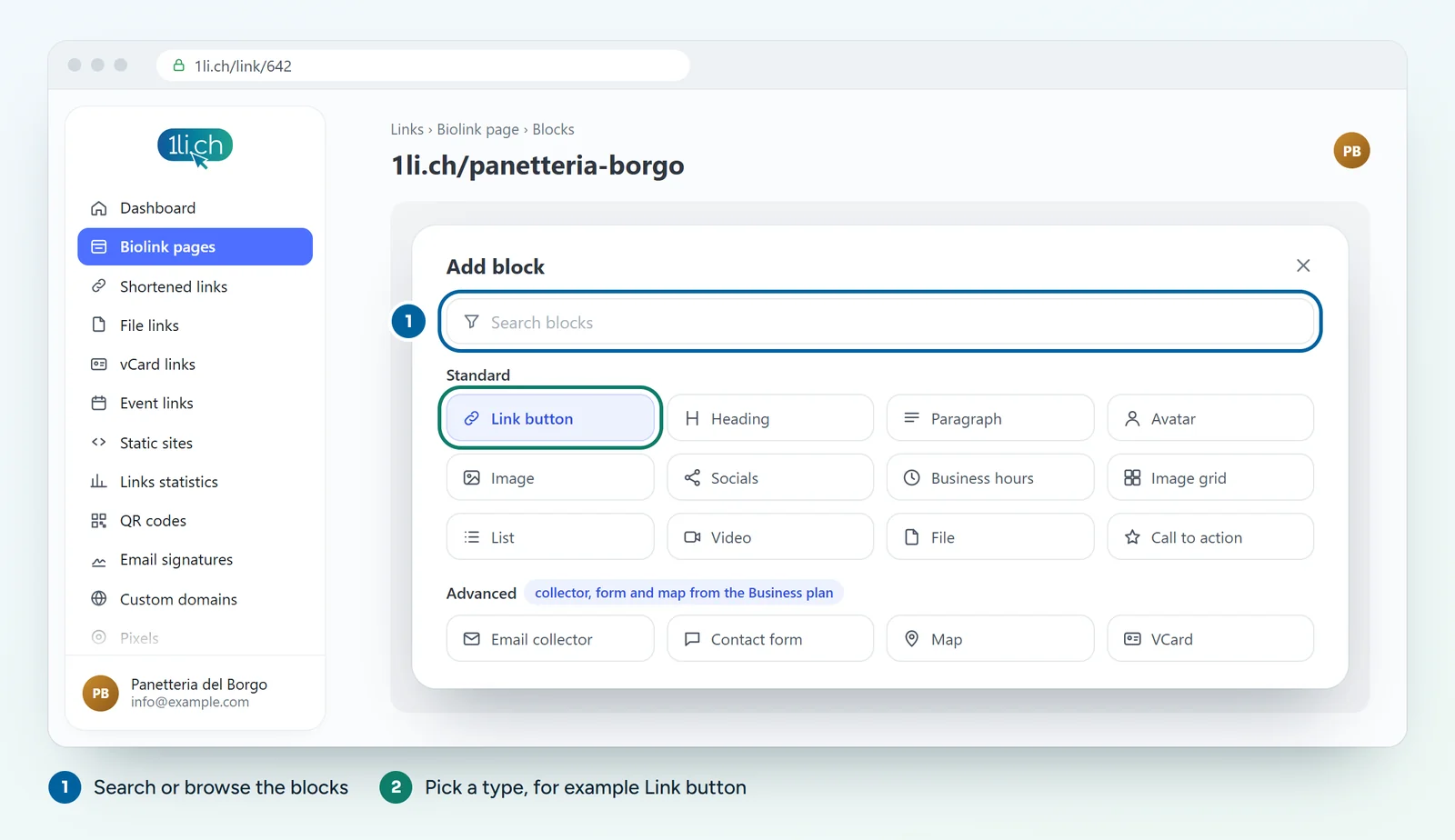
- Fill in the required fields and click Submit.
- Click the block title to open all its settings and customise it.
Order and hide blocks
Blocks appear in the order of the list in the Blocks tab: change the order there to move them on the page. To hide a block without deleting it, use the Display settings below, for example with a schedule.
Border settings
- Border width: from 0 to 5 pixels.
- Border colour.
- Border radius: Square, Round or Rounded.
- Border style: Solid, Dashed, Double, Outset or Inset.
Border shadow settings
- Shadow X position and Shadow Y position: negative values move the shadow left or up, positive values move it right or down.
- Shadow blur: the higher the value, the softer the shadow.
- Shadow spread: at 0 the shadow is not visible, the higher it goes the thicker it gets.
- Shadow colour: with transparency you get subtler shadows.
Display settings
- Scheduling: a start date and an end date, to show an offer only while it runs.
- Visibility by continent, country, city, device, operating system, browser and language. If you choose nothing, the block is visible to everyone.
These are multiple-choice fields: on a computer, hold Shift to pick a range, or Ctrl (Windows) or Command (Mac) to pick several separate items.
Tips
- Put the most important block at the top: many people do not scroll.
- Use visibility by language to show text in Italian or German depending on the visitor.
In your plan
| Feature | Free | Personal | Business | Agency |
|---|---|---|---|---|
| Block types | 21 | 38 | all | all |
| Blocks per page | 10 | ∞ | ∞ | ∞ |
See plans and pricing.