
A QR code in your brand colours with your logo in the centre stands out more and builds trust. On 1li.ch you can change colours, shapes and background, add a frame with a call to action and download a file ready for the printer. What matters is that it stays readable: here you also find the checks to do before printing.
How to customise it
- Create a new QR code from QR codes, or open an existing one for editing.
- Start from a preset theme, if you like.
- Choose the module style (the small squares) and the eye style (the three squares in the corners).
- Set the colours or a gradient, the background colour or transparency, and the eye colours.
- Add your logo (JPG, PNG or GIF, at most 1 MB) and adjust its size.
- If you like, add a frame with text, for example “Scan me”, choosing size, font and colours.
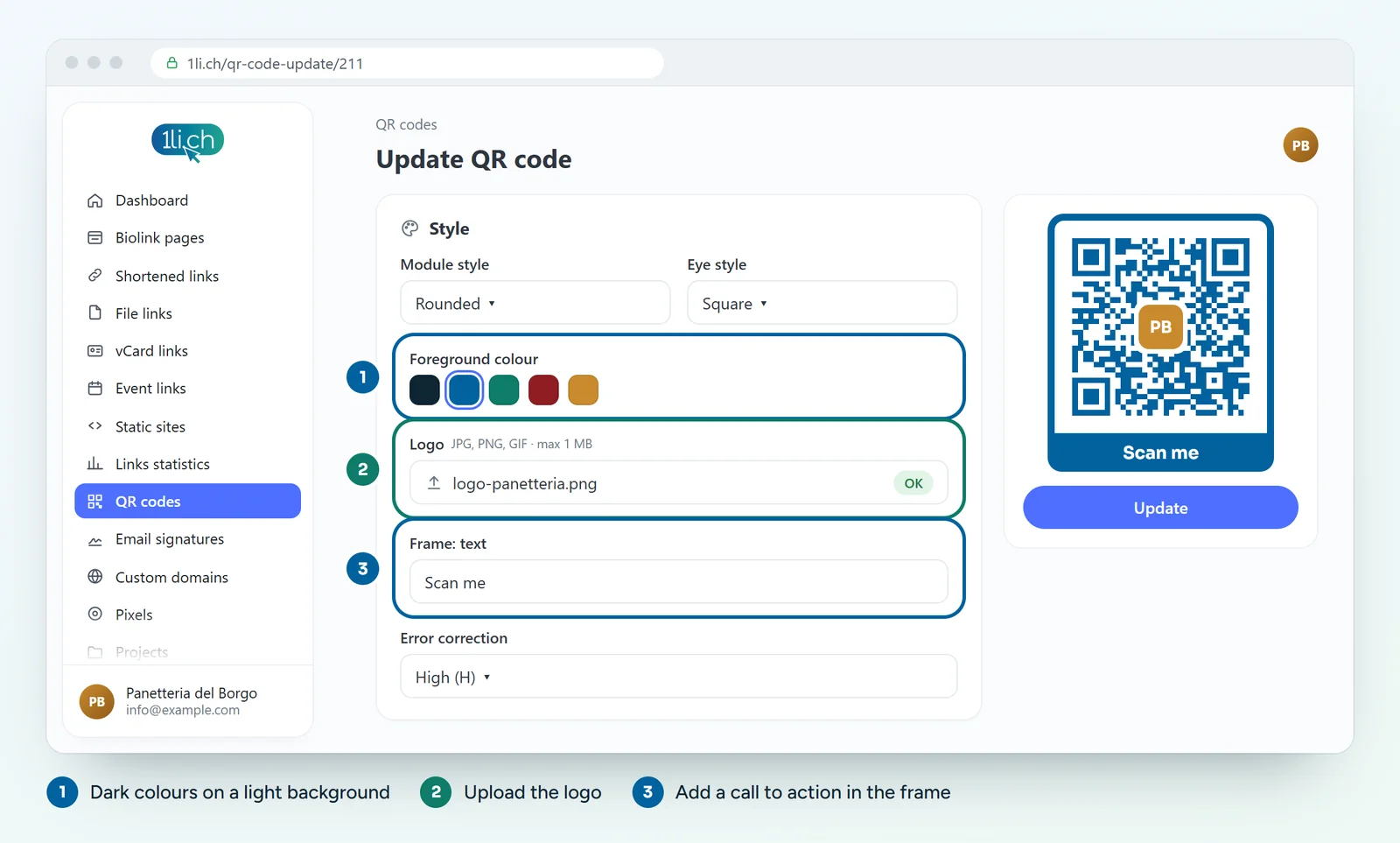
- Adjust the size, margin and error correction.
- Click Create (or save your changes).
Download the QR code for print
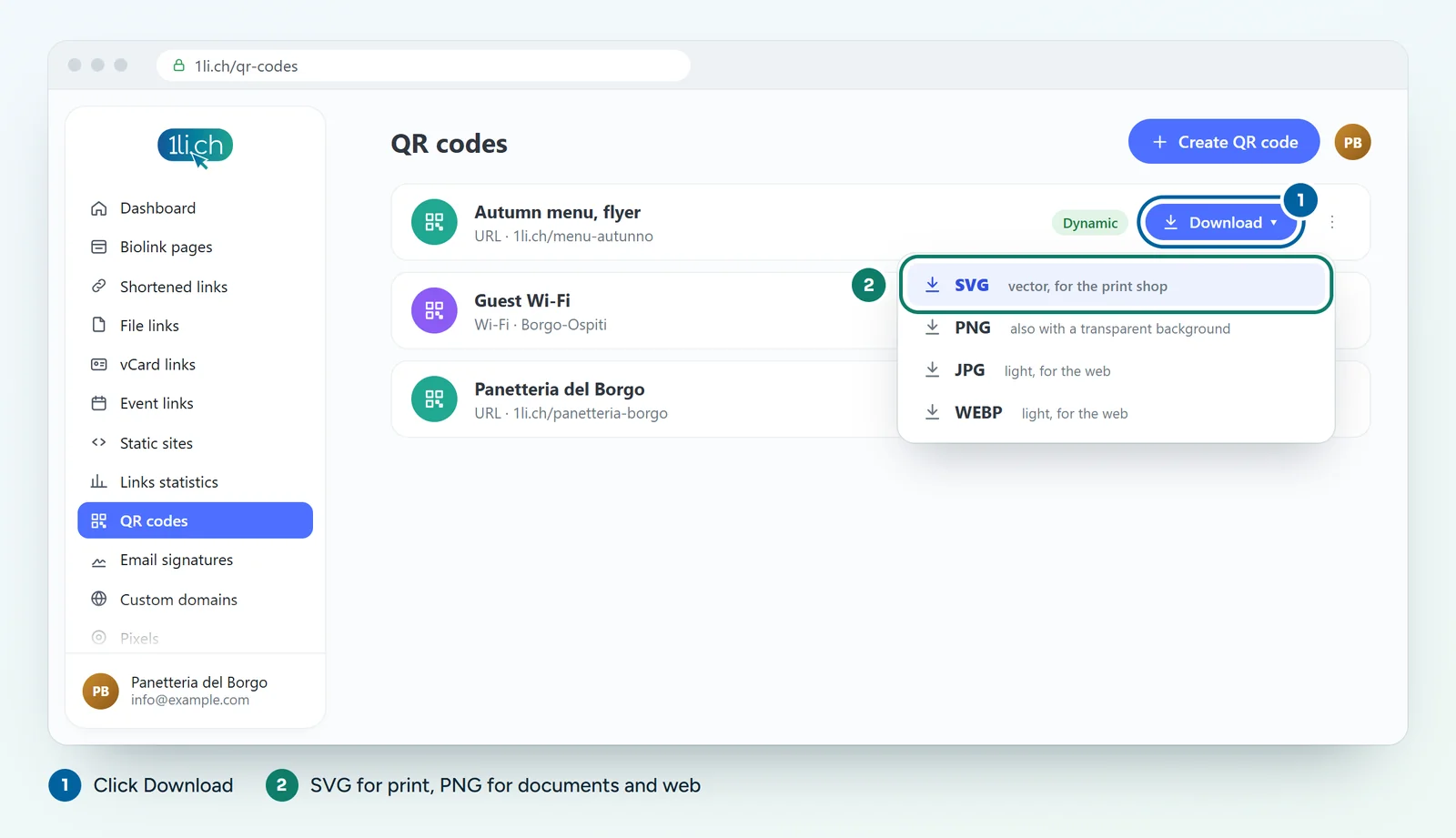
- SVG: vector format, stays sharp at any size. This is the format to give to the printer.
- PNG: for documents, presentations and websites; supports a transparent background.
- JPG and WEBP: light files for the web and social media.
Checks before printing
- Scan the QR code with at least two different phones.
- Also do a test print, at the final size.
- Check the contrast: dark modules on a light background read better than the other way round.
- Leave a clear margin around the code.
Common mistakes
- Logo too big: it covers too many modules and the QR code cannot be read. Reduce the size or raise the error correction.
- Light colours on a light background: many phones cannot read it.
- Static QR code on printed material: if you change the destination you will have to reprint. A dynamic QR code is better.
You can also assign the QR code to a project to keep it organised with the links and pages of the same client or event.
In your plan
| Feature | Free | Personal | Business | Agency |
|---|---|---|---|---|
| QR codes | 1 | 5 | 50 | 250 |
See plans and pricing.