
The look of your biolink page says who you are before anyone reads a word: the colours of your shop, the photo of your venue, the font of your brand. Everything is set in the page’s Settings tab. You can start from a ready-made theme and then fine-tune the details.
How to change the look
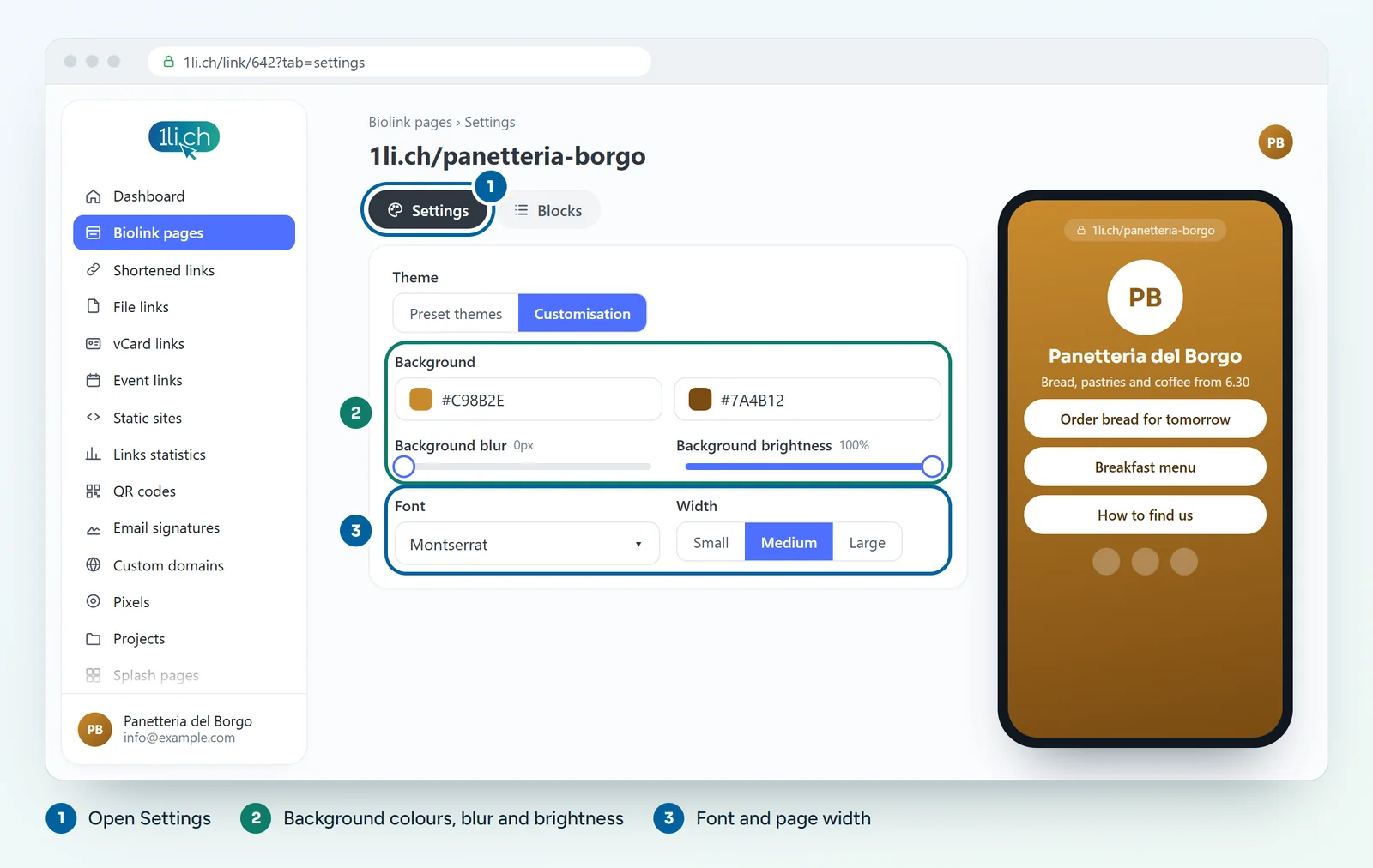
- Open the biolink page for editing and go to the Settings tab.
- Choose a preset Theme as a starting point.
- Set the Background: a colour, a gradient, an image or a video (up to 5 MB). For images and videos you can adjust position, blur and brightness.
- Choose the Font and the Font size.
- Adjust the page Width and the Block spacing.
- Upload a Favicon, the small icon that appears in the browser tab.
- Save and open the public page to check the result.
Other style options
- Hover animation on blocks.
- Branding: whether to show branding at the bottom of the page, with name, URL and colour.
- Branded button and Announcement banner at the top of the page.
- Share button and buttons to scroll up and down.
- Custom CSS and JS for anyone who wants to work with code (Business plan).
Borders, shadows and margins for individual blocks are set in the Blocks tab instead.
Tips
- The text must be easy to read against the background: with a light photo, increase the blur or lower the brightness.
- A video background is striking but heavy: keep it short and light, under 5 MB.
- Use no more than two main colours and one font: the page looks more polished.
- Always check the result on your phone.
In your plan
| Feature | Free | Personal | Business | Agency |
|---|---|---|---|---|
| Preset themes | no | 22 | 22 | 22 |
| Custom CSS | no | no | yes | yes |
| Custom JS | no | no | no | yes |
See plans and pricing.